
Teaching is about much more than explaining lessons. Teachers also need to manage time, organize activities, communicate instructions, and keep students engaged throughout the school day. Handling all these responsibilities at once can be challenging, especially in busy classrooms where students have different learning needs.
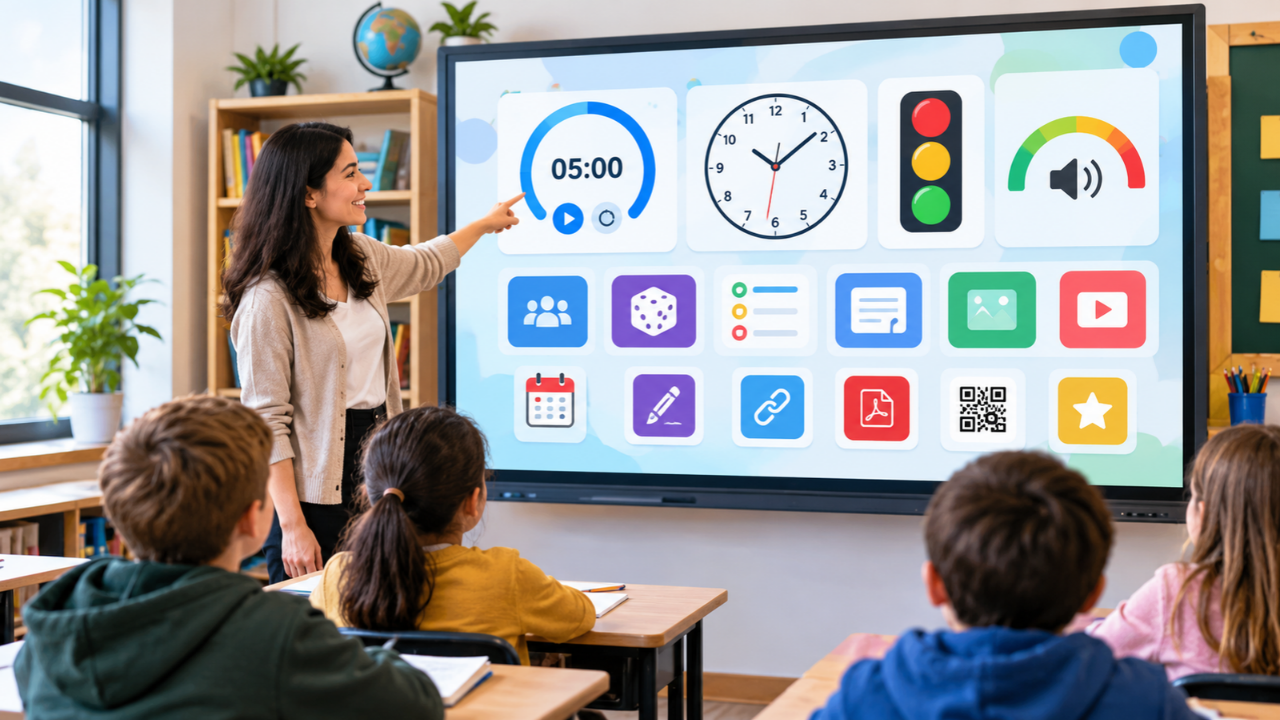
This is where Classroomscreen can make a difference. It is an online classroom management and teaching tool that brings useful features, such as timers, visual instructions, random name selection, and sound-level monitoring, together on one screen.
Instead of switching between several applications, teachers can display the tools they need while delivering a lesson. The platform is designed to support both classroom organization and student participation.
In this guide, we will explore what Classroomscreen is, how it works, its main features, pricing options, advantages, limitations, and practical ways teachers can use it to improve everyday teaching.
What Is Classroomscreen?
Classroomscreen is an online whiteboard designed specifically for teachers. It allows educators to create a customizable display containing different classroom tools, often called widgets. Teachers can use these widgets to manage activities, communicate expectations, and help students stay focused.
According to its official website, the platform supports teachers with time management, lesson organization, and student engagement. It can be used in traditional classrooms, computer-equipped learning environments, and some online or hybrid teaching situations.
You can explore the platform directly at Classroomscreen.com.
One of its main advantages is that teachers can begin using the available tools without necessarily creating an account. Those who want additional features can choose an account or subscription plan according to their needs.
How Does Classroomscreen Work?
Classroomscreen works by allowing teachers to build a screen with the widgets they need for a particular lesson or activity.
For example, a teacher might display a countdown timer, written instructions, a clock, and a visual reminder about classroom noise. Students can then look at the same display to understand what they should be doing and how much time remains.
Getting started is relatively straightforward.
- Open the official Classroomscreen website.
- Launch the classroom screen.
- Choose a background or customize the display.
- Add the widgets needed for your lesson.
- Arrange the tools so the most important information is easy to see.
- Display the screen on a projector, interactive board, or suitable classroom display.
Teachers can adjust the screen as the lesson progresses. For example, they might replace instructions for a writing exercise with a timer for group discussions.
This flexibility makes the platform useful for teachers who want a simple, visual way to organize classroom routines.
Main Features of Classroomscreen
Classroomscreen offers a collection of tools that support different teaching activities. The usefulness of each feature depends on the subject, students’ ages, and the teacher’s classroom management approach.
1. Countdown Timer and Visual Timer
Time management is an important part of successful teaching. Without clear time limits, classroom activities can take longer than expected and leave less time for other lessons.
The timer allows teachers to set a specific duration for an activity. A visual timer can also help students see how time is passing.
Teachers can use these tools for:
- Reading and writing exercises.
- Individual assignments.
- Group discussions.
- Classroom quizzes.
- Breaks between activities.
- Examination practice.
For younger students, a visual countdown may be easier to understand than a verbal reminder. It can also encourage students to complete tasks more independently.
2. Clock and Calendar
The clock widget displays the current time, while calendar and event-related tools can help teachers highlight important dates.
These features are particularly helpful when students need to follow a timetable or prepare for an upcoming activity.
A teacher might display the clock alongside a lesson schedule so students know when a particular session will begin or end. This simple approach can reduce repeated questions about time and transitions.
3. Random Name Picker
Encouraging participation can be difficult when the same students answer every question.
The randomizer allows teachers to select students for classroom activities. It can help distribute opportunities to participate rather than relying entirely on volunteers.
Possible uses include:
- Choosing a student to answer a question.
- Selecting a student to demonstrate a solution.
- Assigning classroom responsibilities.
- Organizing short speaking exercises.
- Making classroom games more interactive.
Teachers should still use their judgment and avoid putting students under unnecessary pressure. Random selection works best when participation feels supportive rather than intimidating.
4. Group Maker
Group work helps students exchange ideas, solve problems, and develop communication skills. However, dividing a class into groups manually can consume valuable teaching time.
The group maker helps teachers organize students into groups more efficiently.
It can be useful for science projects, language activities, collaborative assignments, classroom debates, and peer-learning exercises.
Teachers can use group creation as a starting point and make adjustments when necessary to accommodate students’ needs or the requirements of a particular activity.
5. Sound-Level Monitor
Noise is not always a problem in a classroom. Students often need to talk during discussions, collaborative projects, and practical exercises.
However, excessive noise can make it difficult for others to concentrate.
Classroomscreen includes a sound-level tool that can help teachers monitor classroom volume. Depending on the device and browser permissions, this feature may use the computer’s microphone to measure sound levels.
Teachers can establish different expectations for different activities. For example, silent reading may require a quiet environment, while group work may allow moderate conversation.
A visual sound indicator can remind students to adjust their volume without requiring constant verbal warnings.
6. Traffic Light and Work Symbols
Visual reminders can make classroom expectations easier to understand.
The traffic-light widget uses familiar colors to communicate different conditions or behavior expectations. Work symbols can indicate whether students should work independently, collaborate, or seek assistance.
For example, a teacher might use these signals:
- Green: Students can work together.
- Yellow: Students should keep their voices low.
- Red: Students should stop talking and listen.
These are example classroom rules rather than fixed meanings that every teacher must follow. The important point is to explain the signals clearly and use them consistently.
7. Polls and Student Feedback
Classroomscreen offers polling features that teachers can use to gather opinions or check understanding.
A quick poll can help educators determine whether students understand a topic before moving forward. It can also give quieter students another way to express their views.
Teachers might ask students to identify the correct answer, rate their confidence, or choose which concept needs further explanation.
Some polling options allow students to participate remotely through a link or QR code, depending on the account and settings being used.
8. Additional Classroom Widgets
Beyond its core management tools, Classroomscreen provides several other features that can support lessons.
| Feature | How teachers can use it |
|---|---|
| Text | Display instructions and reminders |
| Stopwatch | Measure the duration of an activity |
| Dice | Add chance-based games to lessons |
| Scoreboard | Track points during educational games |
| Drawing tool | Support visual explanations |
| Image widget | Display relevant pictures |
| Video widget | Show suitable educational videos |
| PDF widget | Present document-based materials |
| QR code | Help students access learning resources |
| Hyperlink | Provide direct access to useful websites |
| Timetable | Display lesson schedules |
| Stickers and backgrounds | Customize the classroom display |
The availability of particular features and account benefits should be checked on the official website because the platform may update its tools over time.
Benefits of Using Classroomscreen in Education
Classroomscreen is not a replacement for good teaching. Instead, it provides practical tools that can make classroom routines easier to manage.
Better Classroom Organization
Displaying instructions, schedules, and time limits in one place can help students understand what is expected of them.
Teachers can spend less time repeating routine information and more time helping students with their learning.
Improved Student Engagement
Timers, polls, randomizers, and educational games can make lessons more interactive.
When students have clear tasks and opportunities to participate, it may become easier to maintain their attention. The results will depend on how thoughtfully the tools are incorporated into the lesson.
Clearer Instructions
Written directions remain visible on the screen while students work. This can be particularly useful when an activity includes several steps or when students need to check instructions independently.
More Efficient Transitions
Moving from one activity to another can disrupt classroom flow. A countdown timer and clear visual signals can help students prepare for transitions.
For example, a teacher can give students two minutes to finish a task before displaying the instructions for the next exercise.
Flexible Teaching Support
The platform can be adapted to different subjects and age groups. An elementary teacher might emphasize visual timers and symbols, while a secondary teacher might focus on assignment instructions, discussion timers, and quick knowledge checks.
How Teachers Can Use Classroomscreen in Different Subjects
The platform is not limited to one subject or teaching style. Its usefulness depends on how teachers combine its features with their lesson objectives.
English and language learning: Display vocabulary, writing prompts, discussion questions, and speaking timers. Random selection can also encourage students to practice speaking.
Mathematics: Use a countdown for problem-solving exercises, a scoreboard for revision games, and dice for probability activities.
Science: Display laboratory instructions, safety reminders, activity timings, and group assignments.
Primary education: Use visual timers, simple symbols, colorful backgrounds, and short interactive activities to support classroom routines.
Online and hybrid lessons: Display instructions and time limits during live sessions. Polling and QR codes can provide additional ways for students to participate when supported by the setup.
Is Classroomscreen Free?
Yes. Classroomscreen offers a free Basic plan, along with a paid Pro option and plans for schools or districts.
The free option can be a useful starting point for teachers who want to try the platform without committing to a subscription.
The following table summarizes the main differences shown on the official pricing page.
| Feature | Basic | Pro |
|---|---|---|
| Price | Free | Listed at $3 per month when billed annually in USD |
| Classroom widgets | Included | Included |
| Annotation tools | Included | Included |
| Remote polling | Included | Included |
| Saved name lists | Up to three | Unlimited |
| Save and share screens | Not included | Included |
| Organize screens in folders | Not included | Included |
| Custom backgrounds | Limited options | Additional customization |
| Best suited for | Getting started | Regular, repeat use |
Prices and plan features may change. Check the official Classroomscreen pricing page for current details, regional pricing, and subscription conditions.
The Basic plan may be enough for teachers who need quick access to classroom tools. Pro may be more suitable for educators who regularly prepare screens and want to save or share their work.
Advantages and Limitations of Classroomscreen
Before adopting any educational tool, it is worth considering both its strengths and its limitations.
Advantages
- Combines multiple teaching tools in one display.
- Offers a free option for getting started.
- Provides visual support for classroom instructions.
- Helps teachers manage time and activity transitions.
- Supports interactive learning through polls and random selection.
- Allows customization for different classroom routines.
- Can be used with a classroom projector or compatible display.
Limitations
- Teachers need a suitable device and screen to make the most of the visual features.
- Internet access is generally important for using the online platform.
- A crowded screen can distract students if too many widgets are displayed.
- Some saving, sharing, and customization features require a paid plan.
- Certain features may need microphone permissions or compatible devices.
- The platform cannot replace clear instructions, appropriate lesson planning, or personal interaction with students.
The best approach is to select only the features that support the current lesson rather than displaying every available tool at once.

Practical Tips for Getting the Most Out of Classroomscreen
Teachers can improve their experience by creating simple and consistent routines.
Start with a clear purpose. Decide what students need to see before adding widgets. A timer and written instructions may be enough for a short assignment.
Keep the display readable. Use a suitable font size, avoid clutter, and select backgrounds that make text easy to read from the back of the classroom.
Create familiar signals. Explain what your visual symbols and colors mean. Consistent use helps students understand expectations more quickly.
Use timers realistically. Give students enough time to complete tasks and allow flexibility when an activity requires additional support.
Encourage participation without pressure. Use polls and random selection to create opportunities for engagement, while respecting different learning needs.
Review your routines. Notice which tools actually help students. Remove features that distract from the lesson or add unnecessary complexity.
Check privacy and permissions. When using microphones, polls, or external content, follow your school’s technology policies and consider students’ privacy.
Frequently Asked Questions About Classroomscreen
1. What is Classroomscreen used for?
Classroomscreen is an online teaching and classroom management tool. Teachers use it to display instructions, manage time, monitor sound levels, organize groups, select students, and make lessons more interactive.
2. Can I use Classroomscreen for free?
Yes. The platform provides a free Basic plan with classroom widgets and several useful features. Paid plans provide additional capabilities, including saving and sharing screens. Visit the official pricing page to confirm the current options.
3. Do I need to create an account to use Classroomscreen?
You can launch and use Classroomscreen without an account for quick access to its tools. Creating a free account provides additional benefits, such as saved preferences and name lists. More advanced screen-saving features are available through Pro.
4. Is Classroomscreen suitable for primary and secondary schools?
Yes. Its tools can be adapted for different age groups. Primary teachers may prefer visual timers and work symbols, while secondary teachers may use polls, assignment instructions, group activities, and countdowns.
5. Can Classroomscreen help with classroom behavior?
It can support classroom management by making expectations visible. For example, teachers can use traffic-light signals, sound-level monitoring, and written instructions. However, effective behavior management also requires consistent routines, positive relationships, and appropriate teaching strategies.
6. Is Classroomscreen worth using?
It may be worth trying if you want several classroom tools in one place without paying immediately. Teachers who frequently use timers, visual instructions, and participation tools may find it particularly helpful. The free plan provides a practical way to decide whether it fits your teaching style.
Final Thoughts
Classroomscreen offers a straightforward way to bring classroom instructions, timers, participation tools, and visual reminders together on one screen. Its combination of free access and optional paid features makes it worth exploring for teachers who want to simplify everyday classroom routines.
The most effective use of the platform is not about filling the screen with widgets. It is about choosing the right tools for the right activity and making expectations clear to students.
Whether you teach young children, secondary school students, or online classes, experimenting with a few simple features can help you determine how well Classroomscreen fits your teaching needs.
For educators looking to improve classroom organization and create more engaging lessons, starting with the free version is a sensible first step.
Also Read: Melanie Lynn Clapp: Biography, Career, Family, and Life Away From the Spotlight
One thought on “Classroomscreen: Features, Benefits, Pricing, and How Teachers Can Use It”